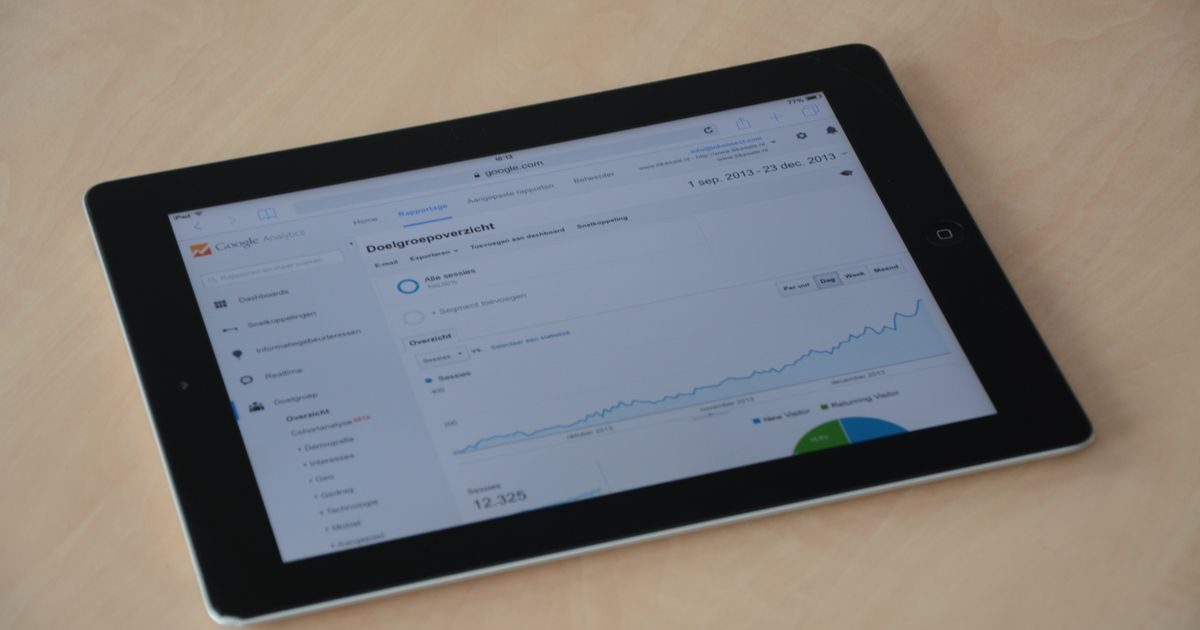
To improve your website load time, you need to work through four areas in order: visual assets first, then caching and compression, then server-level settings, and finally your code. Following this sequence avoids the mistake of fixing symptoms before addressing root causes.
This guide takes you through each step with concrete actions, recommended tools, and metrics to confirm that every improvement actually works.
Step 0: Measure Before Touching Anything
Without a baseline you can't tell whether you're improving things or just making changes. Before any action, run these three tools:
- PageSpeed Insights — gives you Core Web Vitals (LCP, CLS, INP) and improvement opportunities ranked by impact.
- GTmetrix — shows a full HTTP waterfall, ideal for spotting heavy or render-blocking resources.
- WebPageTest — lets you test from different geographic locations and connection types (4G, fiber, etc.).
Record your LCP, TTFB, total page weight, and request count. Those are your comparison points after each step.
Step 1: Optimize Images (Biggest Impact, First Day)
Images typically account for 50–80 % of a web page's total weight. This is where invested time returns the fastest results.
Convert to WebP
WebP reduces file size by 25–35 % compared to JPEG with no visible quality loss. Tools like Squoosh, Cloudinary, or the Imagify plugin for WordPress handle batch conversion with minimal effort.
Resize to actual display dimensions
A 2000 × 1500 pixel image displayed in a 400 × 300 container downloads four times more data than needed. Match image dimensions to the exact container size in your design.
Add lazy loading
Add loading="lazy" to every image that isn't in the initial viewport. The browser will only download them as the user scrolls near them, cutting the page's initial payload significantly.
Set width and height in HTML
Specifying dimensions for each image prevents CLS (Cumulative Layout Shift) — the visual jumps that happen when the browser doesn't know how much space to reserve before the image loads.
Step 2: Enable Browser Cache and Compression
These two server settings are low effort, high impact. Most cPanel hosts support them without root access.
Browser cache via .htaccess
Add the following directives to your .htaccess file to tell browsers how long to keep each resource type:
<IfModule mod_expires.c>
  ExpiresActive On
  ExpiresByType image/webp "access plus 1 year"
  ExpiresByType image/jpeg "access plus 1 year"
  ExpiresByType image/png  "access plus 1 year"
  ExpiresByType text/css   "access plus 1 month"
  ExpiresByType application/javascript "access plus 1 month"
</IfModule>
With this in place, returning visitors won't re-download those files until the configured expiry time passes.
Enable GZIP or Brotli compression
Compression shrinks text-based files (HTML, CSS, JS) by 60–80 % before transmission. In cPanel, go to "Software → Optimize Website" and enable compression for all content types. You can also add this to Apache directly:
<IfModule mod_deflate.c>
  AddOutputFilterByType DEFLATE text/html text/css application/javascript
</IfModule>
Step 3: Minify Code and Remove What's Unused
Minify CSS, JS, and HTML
Cache plugins like W3 Total Cache, WP Rocket, or LiteSpeed Cache include built-in minification. Enable it for CSS and JS; apply HTML minification cautiously and test that nothing breaks.
Remove unused CSS
WordPress themes and CSS frameworks ship with thousands of rules that never apply to your site. Tools like PurgeCSS or the Asset CleanUp plugin identify and strip those rules, dramatically cutting your main stylesheet's weight.
Defer or async-load scripts
Render-blocking JavaScript delays LCP by stopping the browser from painting the page. Add defer or async to any script that doesn't need to run immediately:
<script src="analytics.js" defer></script>Step 4: Optimize the Database and Server
Clean the database regularly
In WordPress, post revisions, drafts, transients, and spam comments accumulate over time and slow down queries. Use WP-Optimize or run OPTIMIZE TABLE from phpMyAdmin at least once a month.
Enable server-level caching
Object caching (Redis or Memcached) stores the results of frequent database queries in RAM, eliminating the need to rerun them. LiteSpeed Cache includes an object cache module if your host runs LiteSpeed.
Check your TTFB
A TTFB above 500 ms means the server is taking too long to generate the first response. The most common causes are saturated shared hosting, PHP running without OPcache, or SQL queries hitting unindexed columns. Enable OPcache from your hosting control panel to speed up PHP execution significantly.
If TTFB remains high after server-side optimizations, it may be time to migrate. The team at elenlace.com can help you evaluate higher-performance hosting options and handle the migration with zero downtime.
Step 5: Add a CDN
A CDN (Content Delivery Network) distributes your static files from servers close to each visitor, eliminating physical distance as a source of latency.
Cloudflare Free: the ideal starting point
Cloudflare Free includes a global CDN, basic DDoS protection, and automatic image optimization (Polish). It's sufficient for most small and medium-sized sites. Integration with WordPress takes under 15 minutes.
When to consider a paid CDN
| Situation | Recommendation |
|---|---|
| Online store with seasonal traffic spikes | Cloudflare Pro or BunnyCDN |
| Site with lots of video or large downloads | BunnyCDN (very low per-GB cost) |
| Need for advanced cache rules | Cloudflare Pro or KeyCDN |
| Small blog or portfolio | Cloudflare Free is enough |
Step 6: Verify and Repeat
After each group of changes, run PageSpeed Insights and GTmetrix again and compare against your baseline. Track changes in a spreadsheet: date, action, LCP before, LCP after. This log is invaluable for identifying which improvements have the most impact on your specific site.
Load time optimization isn't a one-time event — it's an ongoing maintenance process. Every plugin update, new marketing script, or added image can introduce regressions. Scheduling a monthly audit is the best way to maintain performance over the long term.
You can keep learning about speed and performance in our web performance section, where you'll find guides on CDN, Core Web Vitals, hosting, and more.
If you'd rather hand optimization off to professionals, the team at elenlace.com offers web maintenance plans that include monthly speed audits, updates, and dedicated technical support.
Key Takeaways
- Always measure before making changes — PageSpeed Insights, GTmetrix, and WebPageTest give you a real baseline to work from.
- Images are the biggest contributor to page weight; optimizing them delivers the best return on invested time.
- Browser cache and GZIP are server settings that take minutes to enable and produce immediate gains without touching code.
- Minifying CSS/JS and deferring scripts reduces render-blocking and directly improves LCP.
- A high TTFB signals a server-side problem; OPcache and object caching are the most effective remedies before switching hosts.
- A CDN like Cloudflare Free reduces latency for visitors anywhere in the country at no extra cost.
- Optimization is continuous — schedule monthly audits to catch regressions before they affect your rankings.
Ready to improve your site's speed but not sure where to start? Reach out at elenlace.com — we'll run a free audit and tell you exactly what to prioritize first.
FAQ
How long does it take to improve website load time?
Image optimization, caching, and compression can be implemented in a single day. Database optimization, CDN setup, and script fine-tuning typically take two to five working days. Results are visible in measurement tools immediately after each change.
What is a good load time for a website?
Google recommends an LCP under 2.5 seconds and a TTFB under 800 ms. For e-commerce, aim for a fully visual load in under 3 seconds measured on a 4G connection from your primary target market.
Is WordPress slower than other CMS platforms?
WordPress can be as fast as any CMS when configured correctly — OPcache enabled, page caching active, images optimized, and plugins kept lean. The problem isn't WordPress itself; it's unmaintained installations that accumulate plugins and redundant code over time.
Does improving load time help SEO?
Yes, directly. Google includes LCP, CLS, and INP as Core Web Vitals ranking signals. A site that improves these scores can gain positions in search results, especially in niches where competitors run slow sites.
Further reading
Other providers and guides worth comparing: